

- TypeScript and JSX
- Lifecycle hooks
- Snapshot testing
- UI & DOM testing
- Watch mode with
--watch - Script pre-loading with
--preload
Bun aims for compatibility with Jest, but not everything is implemented. To track compatibility, see this tracking
issue.
Run tests
terminal
math.test.ts

*.test.{js|jsx|ts|tsx}*_test.{js|jsx|ts|tsx}*.spec.{js|jsx|ts|tsx}*_spec.{js|jsx|ts|tsx}
bun test. Any test file with a path that matches one of the filters will run. Commonly, these filters will be file or directory names; glob patterns are not yet supported.
terminal
-t/--test-name-pattern flag.
terminal
./ or / to distinguish it from a filter name.
terminal
--preload scripts (see Lifecycle for details), then runs all tests. If a test fails, the test runner will exit with a non-zero exit code.
CI/CD integration
bun test supports a variety of CI/CD integrations.
GitHub Actions
bun test automatically detects if it’s running inside GitHub Actions and will emit GitHub Actions annotations to the console directly.
No configuration is needed, other than installing bun in the workflow and running bun test.
How to install bun in a GitHub Actions workflow
To use bun test in a GitHub Actions workflow, add the following step:
.github/workflows/test.yml
JUnit XML reports (GitLab, etc.)
To usebun test with a JUnit XML reporter, you can use the --reporter=junit in combination with --reporter-outfile.
terminal
Timeouts
Use the--timeout flag to specify a per-test timeout in milliseconds. If a test times out, it will be marked as failed. The default value is 5000.
terminal
Concurrent test execution
By default, Bun runs all tests sequentially within each test file. You can enable concurrent execution to run async tests in parallel, significantly speeding up test suites with independent tests.--concurrent flag
Use the --concurrent flag to run all tests concurrently within their respective files:
terminal
test.serial.
--max-concurrency flag
Control the maximum number of tests running simultaneously with the --max-concurrency flag:
terminal
test.concurrent
Mark individual tests to run concurrently, even when the --concurrent flag is not used:
math.test.ts
test.serial
Force tests to run sequentially, even when the --concurrent flag is enabled:
math.test.ts
Retry failed tests
Use the--retry flag to automatically retry failed tests up to a given number of times. If a test fails and then passes on a subsequent attempt, it is reported as passing.
terminal
{ retry: N } overrides the global --retry value:
bunfig.toml:
bunfig.toml
Rerun tests
Use the--rerun-each flag to run each test multiple times. This is useful for detecting flaky or non-deterministic test failures.
terminal
Randomize test execution order
Use the--randomize flag to run tests in a random order. This helps detect tests that depend on shared state or execution order.
terminal
--randomize, the seed used for randomization will be displayed in the test summary:
terminal
Reproducible random order with --seed
Use the --seed flag to specify a seed for the randomization. This allows you to reproduce the same test order when debugging order-dependent failures.
terminal
--seed flag implies --randomize, so you don’t need to specify both. Using the same seed value will always produce the same test execution order, making it easier to debug intermittent failures caused by test interdependencies.
Bail out with --bail
Use the --bail flag to abort the test run early after a pre-determined number of test failures. By default Bun will run all tests and report all failures, but sometimes in CI environments it’s preferable to terminate earlier to reduce CPU usage.
terminal
Watch mode
Similar tobun run, you can pass the --watch flag to bun test to watch for changes and re-run tests.
terminal
Lifecycle hooks
Bun supports the following lifecycle hooks:
These hooks can be defined inside test files, or in a separate file that is preloaded with the
--preload flag.
terminal
Mocks
Create mock functions with themock function.
math.test.ts
jest.fn(), it behaves identically.
math.test.ts
Snapshot testing
Snapshots are supported bybun test.
math.test.ts
--update-snapshots flag.
terminal
UI & DOM testing
Bun is compatible with popular UI testing libraries: See Test > DOM Testing for complete documentation.Performance
Bun’s test runner is fast.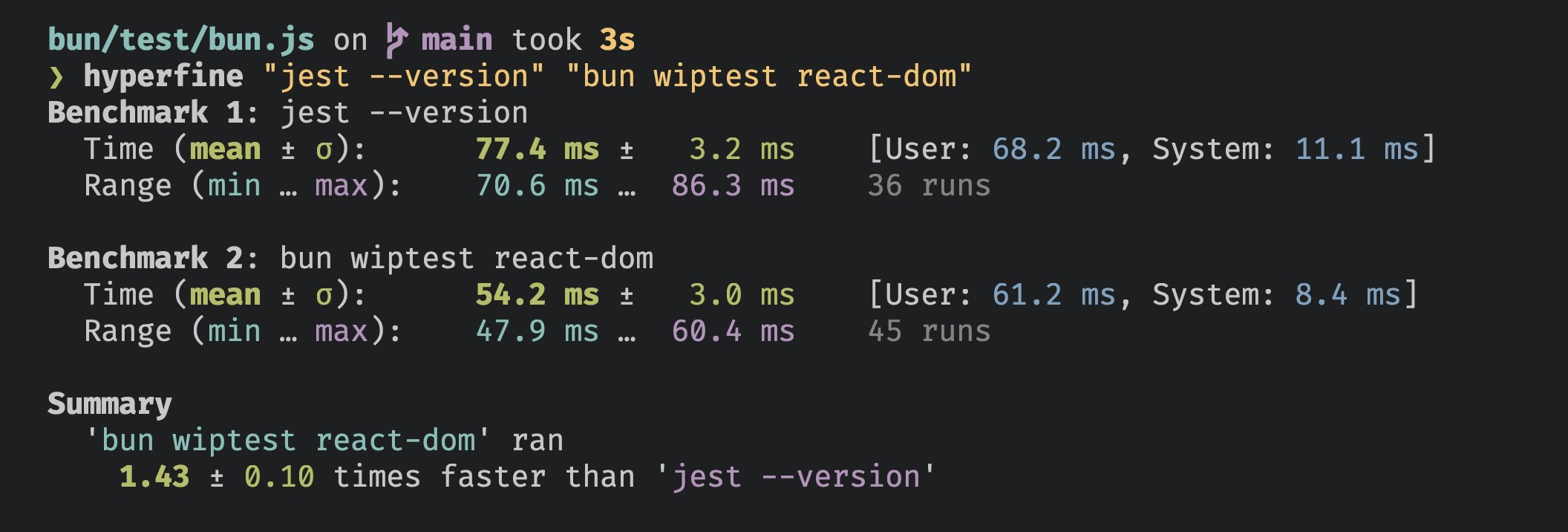
AI Agent Integration
When using Bun’s test runner with AI coding assistants, you can enable quieter output to improve readability and reduce context noise. This feature minimizes test output verbosity while preserving essential failure information.Environment Variables
Set any of the following environment variables to enable AI-friendly output:CLAUDECODE=1- For Claude CodeREPL_ID=1- For ReplitAGENT=1- Generic AI agent flag
Behavior
When an AI agent environment is detected:- Only test failures are displayed in detail
- Passing, skipped, and todo test indicators are hidden
- Summary statistics remain intact
terminal
CLI Usage
Execution Control
number
default:"5000"
Set the per-test timeout in milliseconds (default 5000)
number
Re-run each test file
NUMBER times, helps catch certain bugsnumber
Default retry count for all tests. Failed tests will be retried up to
NUMBER times. Overridden by
per-test boolean
Treat all tests as
test.concurrent() testsboolean
Run tests in random order
number
Set the random seed for test randomization
number
default:"1"
Exit the test suite after
NUMBER failures. If you do not specify a number, it defaults to 1.number
default:"20"
Maximum number of concurrent tests to execute at once (default 20)
Test Filtering
boolean
Include tests that are marked with
test.todo()string
Run only tests with a name that matches the given regex. Alias:
-tReporting
string
Test output reporter format. Available:
junit (requires —reporter-outfile), dots. Default:
console output.string
Output file path for the reporter format (required with —reporter)
boolean
Enable dots reporter. Shorthand for —reporter=dots
Coverage
boolean
Generate a coverage profile
string
default:"text"
Report coverage in
text and/or lcov. Defaults to textstring
default:"coverage"
Directory for coverage files. Defaults to
coverageSnapshots
boolean
Update snapshot files. Alias:
-uExamples
Run all test files:terminal
terminal
terminal